How to Integrate Swikly with Eviivo?
1. Connect your Swikly account to Eviivo
2. Set up security deposits in Swikly
3. Set up security deposit amounts in Eviivo
4. Configure the security deposit request email
5. How do I know if the security deposit has been secured?
1. Connect your Swikly account to Eviivo
First, you need to contact Eviivo to activate the Swikly gateway and obtain your API keys.
Open Eviivo in one browser tab and Swikly in another tab so you can easily switch between the two platforms.
From your Swikly account:
Click on "Apps & Integrations" in the left-hand menu, then search for "Eviivo"
Click on "Connect"
Fill in the "client_id" and "client_secret" fields with the information provided by Eviivo
That’s it! Your Swikly account is now connected to your Eviivo account!
2. Set up security deposits in Swikly
After connecting Eviivo to Swikly, the list of properties appears below:
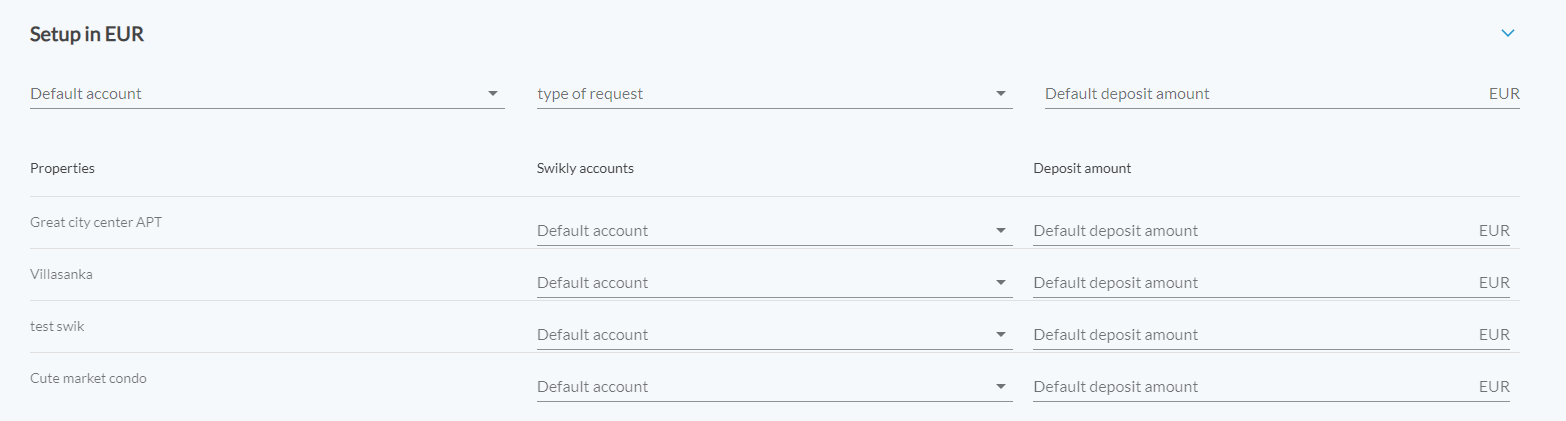
Select:
- The default Swikly account
- Type of request
- Default security deposit amount
These fields must be filled in for Swikly links to work properly.
If you use managed accounts – "What are managed accounts?"
you can assign properties to different Swikly accounts by selecting the account in the "Swikly Accounts" column.
Click on "Validate".
3. Set up security deposit amounts in Eviivo
You can define your security deposit amounts either from the property details, or directly on the booking.
4. Configure the security deposit request email
Once the security deposit amounts are set, you can configure the email template that will include the link directing your guest to the security deposit form.
From Eviivo:
- Click on "Guest" → "Templates" → "Emails and messages
You will access the custom email templates
- Click on "Schedule Settings" to define when and under which conditions this email is sent
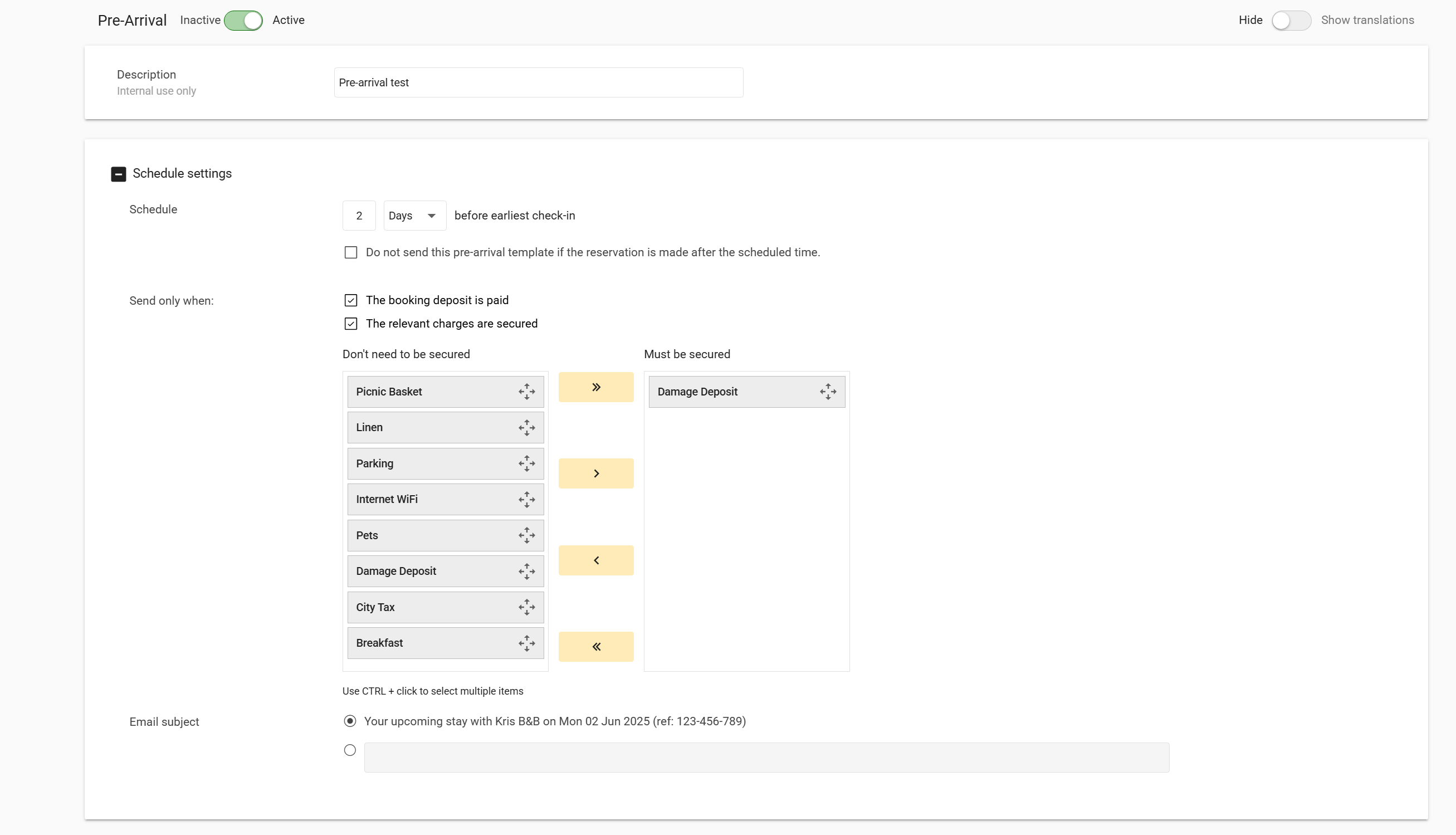
Please note: the filter "booking deposit is paid" does not refer to the Swikly security deposit, but to the booking advance payment.
5. How do I know if the security deposit has been secured?
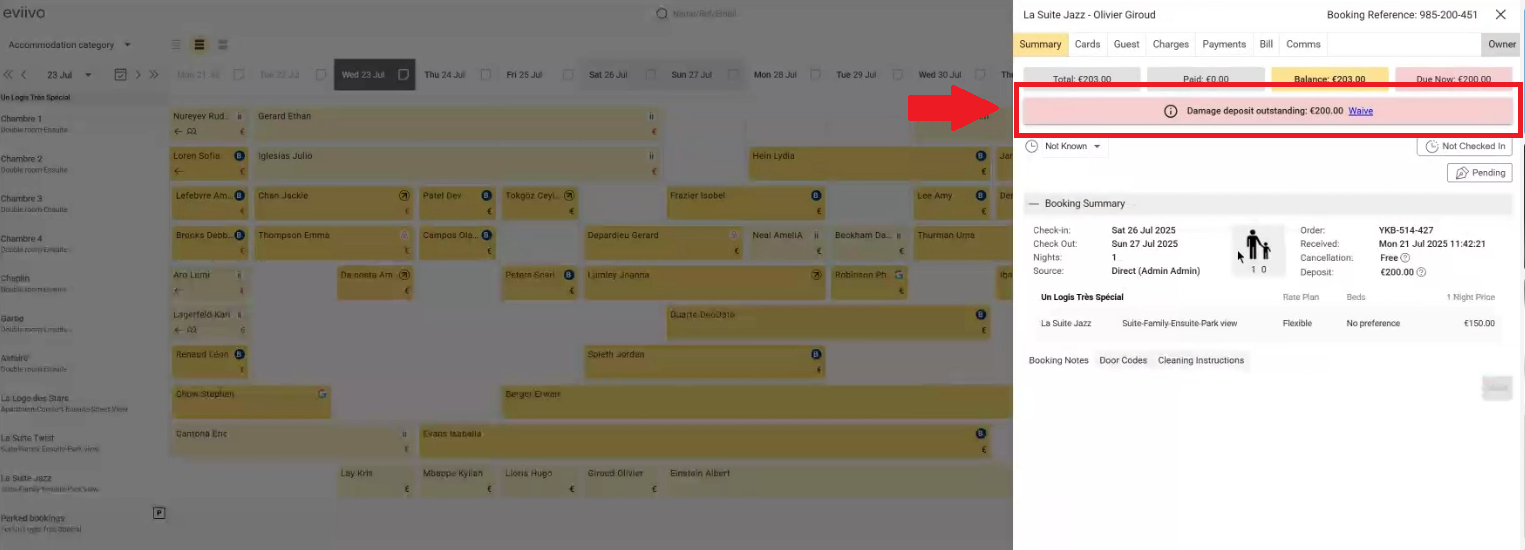
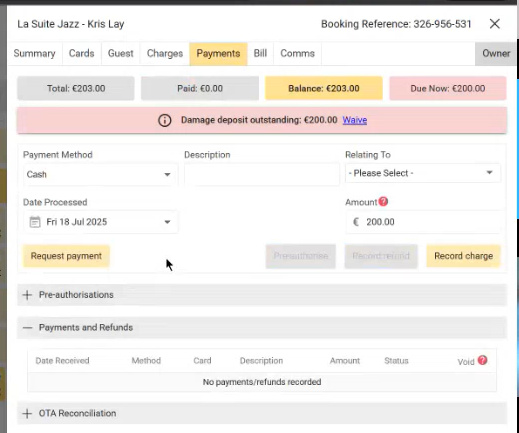
You can check whether the security deposit has been secured from the "Overview" tab of a booking, or from the "Payment" tab.
Was this article helpful?
That’s Great!
Thank you for your feedback
Sorry! We couldn't be helpful
Thank you for your feedback
Feedback sent
We appreciate your effort and will try to fix the article