Create one or several scheduled reclaim request
Create a scheduled reclaim request
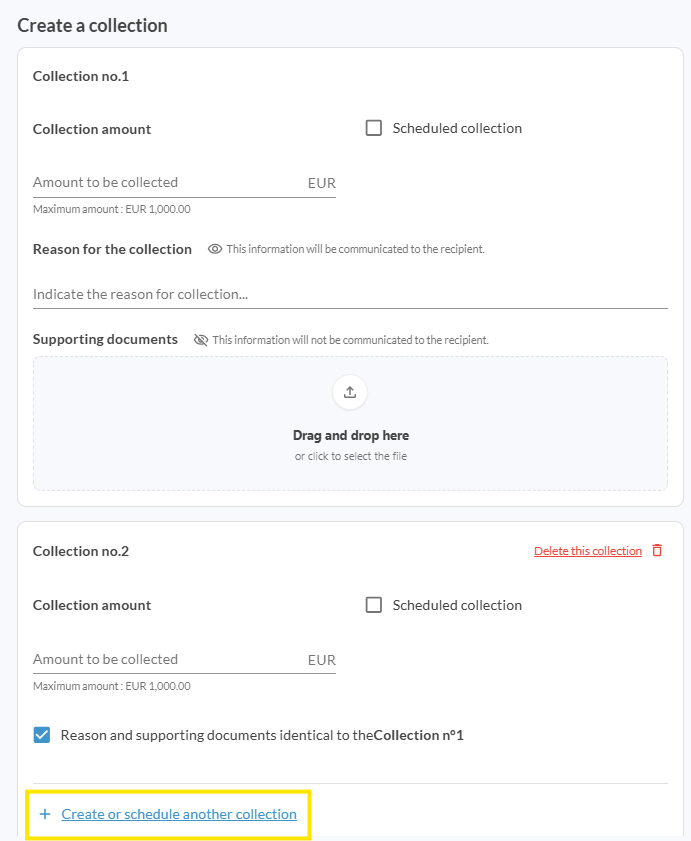
Create multiple scheduled reclaim requests
Edit a scheduled reclaim request
Create a scheduled reclaim request
Do you need to schedule a charge in advance? Does your customer want to pay in installments? Would you like to set up staggered debits?
You can do it easily in just a few clicks!
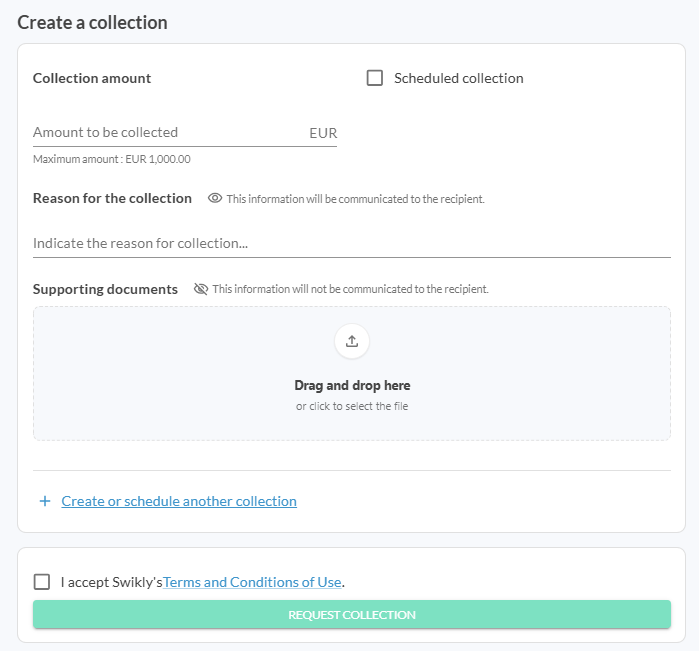
From your dashboard, click the "Collect" button on the relevant deposit. In the window that opens:
- Check the "Scheduled collection" box
- Enter the amount to be charged
- Enter the charge date
- Note: The scheduled date must be after today’s date and cannot exceed the deposit’s expiration date
- Fill in the reason for the request
- Add supporting documents if necessary
Edit a scheduled reclaim request
All your scheduled charges are visible from your dashboard.
You can modify them by clicking the "Change" button on the relevant deposit.

Was this article helpful?
That’s Great!
Thank you for your feedback
Sorry! We couldn't be helpful
Thank you for your feedback
Feedback sent
We appreciate your effort and will try to fix the article